Negative keywords decide which searches can show your ad. Bidding strategies decide what you pay when your ad does show. Used together, they cut wasted clicks and keep winning keywords funded. Used alone, each one leaves money on the table.
Most sellers treat these as two separate jobs. That is why spend leaks. A term with twenty clicks and no sale needs one action. A term that sells at a high ACoS needs another.
This guide shows what to do with each kind of search term. You will learn the match types, the bid math, and how placement adjustments stack. You also get a weekly routine to run in Campaign Manager.
How Negative Keywords and Bids Work Together
Every search term in your report needs one of four decisions. Block it, lower its bid, promote it, or leave it alone. Negative keywords handle the first decision. Bids and bidding strategies handle the other three.
| What the report shows | Likely cause | What to do |
|---|---|---|
| Many clicks, no orders, term is irrelevant | Wrong shopper intent | Add a negative exact or negative phrase |
| Many clicks, no orders, term is relevant | Weak listing, price gap, or bid too high | Lower the bid and check the listing before blocking |
| Orders, ACoS above target | Bid too high for the conversion rate | Reduce the bid toward your maximum CPC |
| Orders, ACoS at or below target | Proven term | Promote to exact match and negate it in the source campaign |
| Few clicks, no orders | Not enough data | Leave it and keep collecting |
The second row is where sellers make the most mistakes. A relevant term with no sales is not always a bad term. Blocking it removes the data you need to fix the real problem.
Amazon Negative Keyword Match Types
Amazon Sponsored Products offers two negative keyword match types: negative exact and negative phrase. There is no negative broad match. Choosing the right one decides whether you block one wasted search or a whole group of good ones.
Negative exact
Negative exact blocks the search itself and close variants such as plurals and misspellings. It does not block longer searches that contain the term. If you add “cheap leather wallet” as a negative exact, that search stops triggering your ad. Your ad can still show for “slim leather wallet” or “cheap leather wallet for men”.
This is the safest choice. Use it whenever you are unsure.
Negative phrase
Negative phrase blocks any search that contains your phrase in the same order. If you add “for kids” as a negative phrase, you block “water bottle for kids” and “for kids water bottle”. You do not block “kids water bottle”, because the words appear in a different order.
Use negative phrase when a whole concept never fits your product. Words like “free”, “used”, and “replacement” are common examples. Never add a core product word as a negative phrase. If you sell coffee beans, a negative phrase of “coffee” would block nearly every search that matters.
| Match type | What it blocks | Length limit |
|---|---|---|
| Negative exact | The exact search and close variants | 10 words, 80 characters |
| Negative phrase | Any search containing the phrase in order | 4 words, 80 characters |
A few rules save you from avoidable problems:
- You cannot edit the match type of a negative keyword. Remove it and add it again.
- A new negative keyword can take up to 72 hours to apply.
- Amazon allows up to 10,000 negative keywords per campaign and per ad group.
How to Find Negative Keywords in Your Search Term Report
The search term report shows the real searches that earned at least one click on your ads. It is your main source of negative keyword candidates. Review it every week while a campaign is new, then less often once it settles.
Amazon advises waiting for data before adding negatives to a brand-new campaign. Two weeks is a sensible minimum. Blocking too early removes terms before they have a fair chance to convert.
A five-step review
- Open Reports in the advertising console and run a Search Term report for Sponsored Products.
- Pick a date range that gives each term enough clicks. Thirty days is a common starting point.
- Sort by spend and filter for terms with zero orders.
- Label each term as irrelevant, relevant but unproven, or too early to judge.
- Add the irrelevant terms as negatives. Leave the other two groups alone.
How many clicks before you block a term?
Do not block on a hunch. Use your own conversion rate to set a click threshold. Divide 1 by your conversion rate to get the average clicks per order. At a 10% conversion rate, that is 10 clicks per order.
Here is what the math says. If a term truly converted at 10%, the chance of 20 clicks with no order is about 12%. At 30 clicks, that chance falls to about 4%. So a cutoff of two to three times your clicks per order is a reasonable rule.
This rule assumes the term would convert at your average rate. Swap in your own number. Skip the rule entirely for terms that are plainly wrong. A search for a different product needs no data to block.
Common types of negative keywords
- Wrong attributes. Sizes, colors, or materials your product does not offer.
- Wrong intent words. Terms like “free”, “used”, “diy”, or “replacement” when you sell none of those.
- Other product types. Searches for items that share one word with yours.
- Competitor brand names. Block them in generic campaigns. If you want to target them, run them in a separate campaign with tighter bids.
- Your own brand name in generic campaigns. Brand searches convert well. They can hide how weak your generic campaigns really are.
When not to block a term
A high ACoS alone is not a reason to block. The cause may be a weak main image, a price gap, or a bid that is too high. Fix those first.
Launch keywords are another exception. A term can cost more than your target ACoS and still move your organic rank. It can earn its place for a few weeks. Our guide on reducing ACoS and improving TACoS explains how to judge that trade.
If you own a registered brand, Brand Analytics search data can show which searches bring clicks but few purchases. That gives you a second source of ideas beyond the search term report.
Where to Add Negative Keywords: Campaign or Ad Group
A negative keyword added at the campaign level applies to every ad group in that campaign. A negative added at the ad group level affects only that group. Pick the level that matches how widely the term is wrong.
Use the ad group level for most negatives. It keeps the block narrow. Use the campaign level only for terms that are wrong for every product in the campaign.
To add them, open Campaign Manager, choose the campaign and ad group, and go to Negative targeting. Select Add negative keywords, pick the match type, and enter one term per line. Sellers with large lists can upload negatives in bulk with a bulksheet.
After you save, wait for the 72-hour window. Then check impressions and spend for that ad group. A sharp drop in impressions can mean a negative phrase was too broad.
Negative Product Targeting: Blocking Pages That Never Convert
Your Sponsored Products ads can also appear on other sellers’ product pages. A negative product target tells Amazon not to show your ad on a chosen ASIN or brand. It can take up to 96 hours to apply.
Amazon’s own example is a camera lens that appears on the page of a camera it does not fit. Making that camera a negative product removes a click that cannot convert.
Negative products also stop automatic targeting from showing your ad on those pages. That makes them one of the few controls you have over an auto campaign.
Look for pages with a clear mismatch. A premium product shown on a page for a much cheaper item is one case. A product that does not fit the item on the page is another. Treat price and review gaps as signals to test, not as fixed rules. Check the data before you block a page.
Search Term Isolation: Stop Your Campaigns Competing With Each Other
Search term isolation moves a proven search term into its own campaign and blocks it everywhere else. Without it, an auto campaign and a manual campaign can bid on the same search. You then pay to compete with yourself.
Follow this order:
- Find a search term in an auto or broad campaign that converts at or below your target ACoS.
- Add it as an exact match keyword in a dedicated manual campaign.
- Add the same term as a negative exact in the campaign where you found it.
- Check the manual campaign after a week to confirm it is getting the impressions.
Set your own bar for step one. For example, two or more orders at or below target ACoS. Our campaign structure guide for private label brands shows how to organize the campaigns that receive these terms.
Amazon PPC Bidding Strategies: Down Only, Up and Down, and Fixed
Amazon Sponsored Products gives you three bidding strategies. You choose one per campaign and can change it later. Each one controls how much freedom Amazon has to move your bid in real time.
- Dynamic bids, down only. Amazon lowers your bid when a click looks unlikely to lead to a sale. It never raises the bid.
- Dynamic bids, up and down. Amazon lowers the bid for unlikely clicks and raises it by up to 100% when a sale looks likely.
- Fixed bids. Amazon uses your bid as set, apart from any placement adjustment you add.
| Strategy | Best for | Watch for |
|---|---|---|
| Down only | New campaigns, tight budgets, auto and broad discovery | Can hold back a keyword that already converts well |
| Up and down | Proven products where you want more top-of-search sales | Clicks can cost up to twice your bid |
| Fixed | Known target ACoS, brand defense, controlled tests | No automatic response to changing competition |
When to switch from down only to up and down
Many guides set a calendar rule, such as 30 or 60 days. Sources disagree on the number, so treat days as a rough guide. Switch when the data supports it.
- The campaign has enough orders for a stable conversion rate.
- ACoS is at or below your target.
- Your margin can absorb clicks that cost up to double your bid.
After you switch, leave the campaign alone for two weeks. Changing the strategy and the bids on the same day makes the result impossible to read.
Rule-based bidding
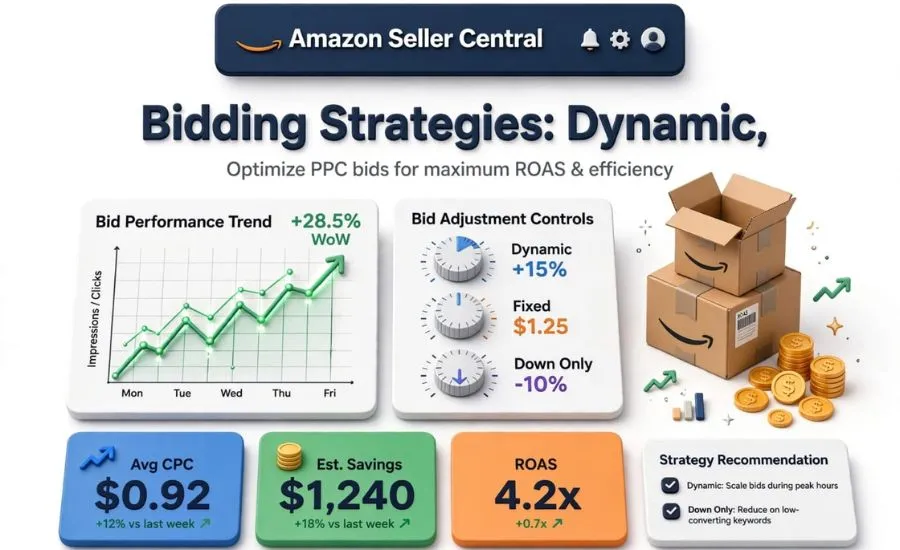
Amazon also offers rule-based bidding. You set a target return on ad spend, and Amazon moves bids to chase it. Amazon suggests waiting for about two weeks of data before you set the target.
Scheduled bid rules raise bids at set hours, days, or events such as Black Friday. For where these tools fit in a wider system, see our guide on automation rules for busy sellers.
How to Calculate Your Maximum Bid
Your maximum CPC is the most a click can cost before the ad loses money at your target ACoS. Most sellers start from Amazon’s suggested bid. That number reflects auction competition, not your margin.
Start with break-even ACoS. This equals your profit margin before ad spend. If you keep 30% of each sale before advertising, your break-even ACoS is 30%. Set your target ACoS below it, so each sale leaves some profit.
Then use this formula:
Maximum CPC = Target ACoS × Price × Conversion rate
Here is an example with illustrative numbers. Your price is $40, your conversion rate is 10%, and your target ACoS is 25%. The math is 0.25 × $40 × 0.10, which gives a maximum CPC of $1.00.
Use your real numbers instead of these. For a new product, start your bids below the maximum while you collect data. Many sellers start about 20% to 25% lower.
Adjusting a bid once you have data
Once a keyword has enough clicks, use this formula:
New bid = (Target ACoS ÷ Actual ACoS) × Current bid
If your target is 20%, your actual ACoS is 30%, and your bid is $1.20, the new bid is $0.80. Avoid moving a bid by more than about 20% to 25% in one pass. Wait one to two weeks before changing it again.
Placement Adjustments and How They Stack With Dynamic Bids
Placement adjustments raise your bid for top of search, rest of search, or product pages. Amazon allows increases of up to 900%. The adjustment applies to your base bid first. Dynamic bidding then applies on top of the adjusted bid.
That order matters. Here is an example with a $1.00 base bid. A top-of-search adjustment of +200% makes the placement bid $3.00. With dynamic bids up and down, Amazon can raise that by up to 100%. The effective bid at the top of search can reach $6.00.
Under fixed bids, the same setup stays at $3.00. Under down only, it can fall below $3.00 but never rise. Work out the ceiling before you save any large adjustment.
When to raise top of search
Raise the top-of-search adjustment only when the placement report supports it. Look for these signs:
- Top-of-search ACoS is below your target.
- Top-of-search conversion rate beats the other placements.
- You are losing impressions despite strong performance.
Shifting spend toward the best placement
You can favor a strong placement without raising total spend. Lower the base bid and raise the placement adjustment together. For example, a base bid of $1.20 with +50% gives $1.80 at the top of search and $1.20 elsewhere.
Change the base bid to $0.80 and the adjustment to +125%. The top-of-search bid stays near $1.80. Every other placement now costs $0.80. Review the placement report before you try this, because it only works when top of search truly outperforms.
Bidding Strategy by Campaign Type
Different campaigns do different jobs, so they need different bid settings. Use this table as a starting point and adjust it with your own data.
| Campaign type | Starting strategy | Reason |
|---|---|---|
| Auto | Down only | Discovery traffic converts less predictably |
| Broad match | Down only | Wide reach with lower intent |
| Phrase match | Down only, test up and down later | Better intent, still exploratory |
| Exact match | Up and down or fixed | You know what these terms are worth |
| Brand defense | Fixed | Conversion is high and predictable |
| Competitor targeting | Down only | Shoppers already prefer another brand |
Bid lower on broad and phrase than on exact. Exact terms carry the strongest buying intent, so they deserve the largest share of budget. For how the three ad types differ, read our comparison of Sponsored Products, Brands, and Display.
A Weekly Routine for Negatives and Bids
A routine keeps small leaks from turning into large ones. Run this every week for new campaigns. Stretch it to every two weeks once they stabilize.
- Download the search term report. Sort by spend and label each term.
- Add clear negatives at the ad group level. Use negative exact unless a whole phrase is wrong.
- Promote converting terms to exact match and negate them in the source campaign.
- Review ACoS by placement. Adjust top-of-search only where the data supports it.
- Recalculate bids for keywords with enough clicks. Move them by 20% to 25% at most.
- Log every change with the date. Check results after seven to fourteen days.
Once a month, review the whole negative list. Search behavior shifts with seasons and events. A term you blocked in January may deserve a second look before a holiday.
Common Mistakes
- Adding negatives to a new campaign before it has data.
- Using a core product word as a negative phrase.
- Blocking a relevant term when the real problem is the listing.
- Leaving a winning term active in the auto campaign after promoting it.
- Switching to up and down before conversion data exists.
- Raising placement adjustments without checking the combined bid.
- Changing bids and strategy on the same day.
- Never revisiting a bidding strategy as the product matures.
Troubleshooting Table
| Symptom | Likely cause | Fix |
|---|---|---|
| Impressions fell sharply after adding negatives | A negative phrase was too broad | Remove it and replace it with negative exact terms |
| A blocked term still shows in the report | The 72-hour delay, or the term came from another campaign | Wait, then check the campaign and ad group level |
| ACoS rose after switching to up and down | Not enough conversion data, or the margin cannot absorb the higher clicks | Return to down only and revisit later |
| Spend jumped at the top of search | Placement adjustment compounding with dynamic bids | Calculate the ceiling and lower the adjustment |
| Sales dropped after you cut bids across the board | Bids fell below what wins impressions | Reverse the cut on proven terms and trim only the weak ones |
| The same term keeps appearing in two campaigns | No negative exact bridge | Add the term as a negative exact in the source campaign |
When Bids and Negatives Are Not the Problem
Clean negatives and smart bids cannot fix a listing that fails to convert. If clicks arrive but sales do not, look at the page. Check your main image, price, reviews, and bullet points. Our listing guide covers what to review.
A low click rate is a separate signal. If impressions are strong but clicks are weak, see why click-through rate drops. If ACoS stays high after weeks of tuning, read when ads are not the real problem.
Want a second set of eyes on your search term reports and bid settings? Our PPC management team can review your account. You can also request a PPC and listing audit.
Frequently Asked Questions
What are negative keywords on Amazon?
They are search terms you tell Amazon not to show your ad for. They apply to paid ads only. They do not remove your product from organic results.
Is there a negative broad match on Amazon?
No. Sponsored Products offers negative exact and negative phrase.
Should I use negative exact or negative phrase?
Start with negative exact. Use negative phrase only when a whole phrase never fits your product.
Which bidding strategy should a new campaign use?
Dynamic bids, down only. Amazon never raises your bid, and it cuts bids on clicks that look unlikely to sell.
Can Amazon charge more than my bid?
Yes, with dynamic bids up and down or placement adjustments. It never exceeds the maximum those settings allow.
How often should I update negatives?
Weekly for new campaigns. Every two weeks or monthly for stable ones.
Conclusion
Negative keywords and bids solve the same problem from two sides. Negatives stop the wrong searches from showing your ad. Bids control what you pay for the right ones.
Start with your search term report. Block what is clearly wrong, promote what sells, and set bids from your own margin. Change one thing at a time and give each change a week or two to show results.